To change your password login with your student email (e.g. [email protected]), enter your current password and follow the verification prompts.
Your password must be (at minimum):
!@#$%^|&)_(*}{+-/\:'=`~.<>"?;][Note 1: You will NOT be able to use sequential characters such as "123", "qwerty" or "1qaz" anywhere in your password.
Note 2: You will not be able to reuse previous.
If you have forgotten your password, request a password reset by entering your student email (e.g. [email protected]) and following the verification steps.
Entering an incorrect password 3 times will lock you out of your account for 15 minutes. This is a safeguard to reduce unauthorised users accessing your account. Please try again after the lockout period.
Things to be aware of:
If you are still unable to login and are unable to request a password reset, contact Tech Services on +61 2 4980 2111
Follow these steps to change your default sign in method only if you've received specific instructions to do so.
Prerequisites:
Steps:
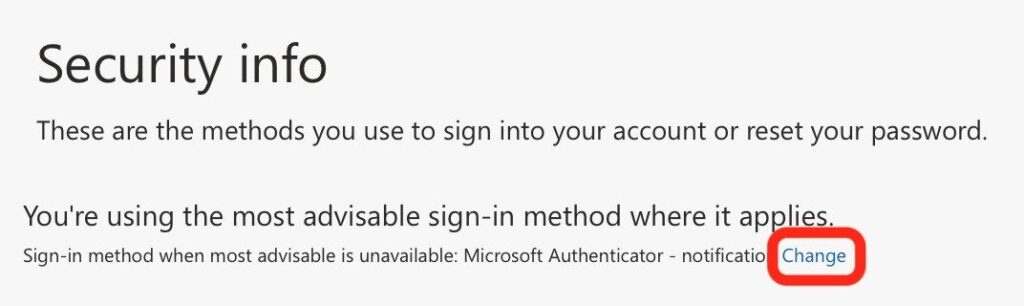
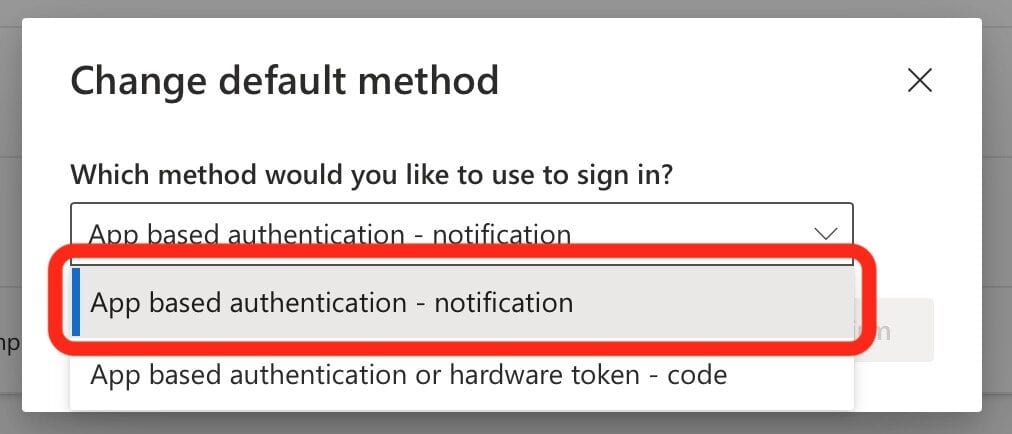
Note: If the above does not work, setup Microsoft Authenticator again by selecting: Add sign-in method, and then Microsoft Authenticator.