Our support hours are 8:30 am - 5 pm Monday - Thursday and 8:30 am - 12 noon on Friday.
To log a request with us, email [email protected], with a detailed description of the problem.
If your request is urgent, phone extension 111 (on-campus) or +61 2 4980 2111 (off-campus), or visit Service Desk at the Lake Macquarie campus. We are located on the ground floor of the Turner building.
Any Windows or macOS device purchased new within the past 5 years.
Not supported: Chromebooks
Supported email clients:
Not supported: Thunderbird
Supported web browsers:
Limited support may be provided for other browsers.
See Web Browser Tricks and Tips for help with troubleshooting common web related issues.
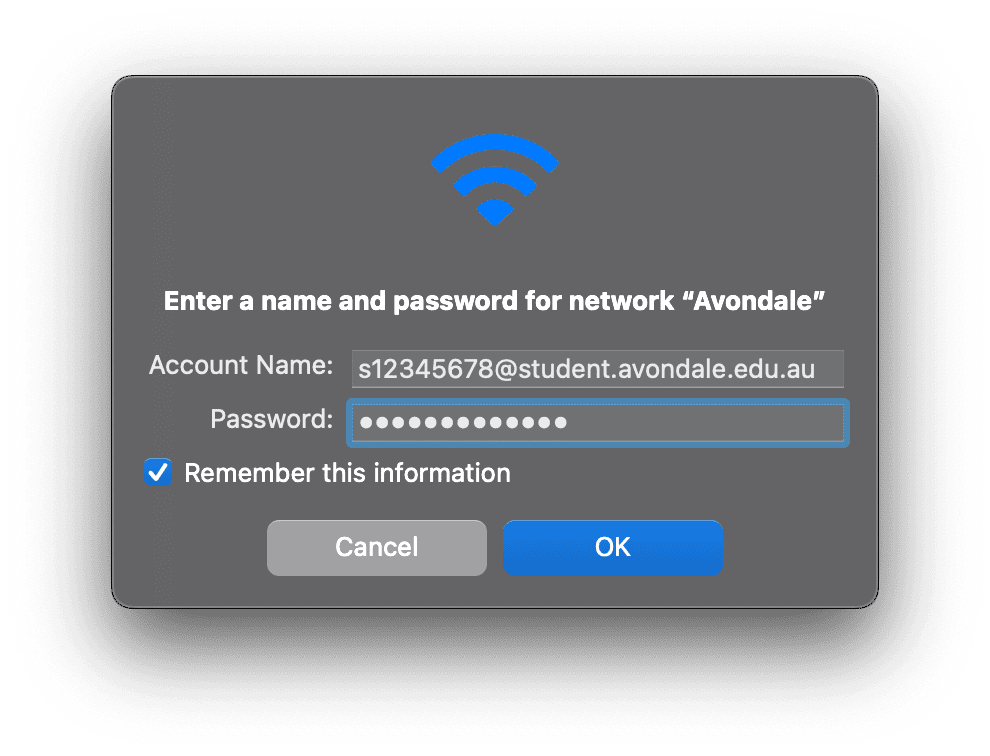
Enter your Avondale email address (e.g. [email protected]) and password, then press the continue/accept/trust to connect to the Avondale Wifi network.
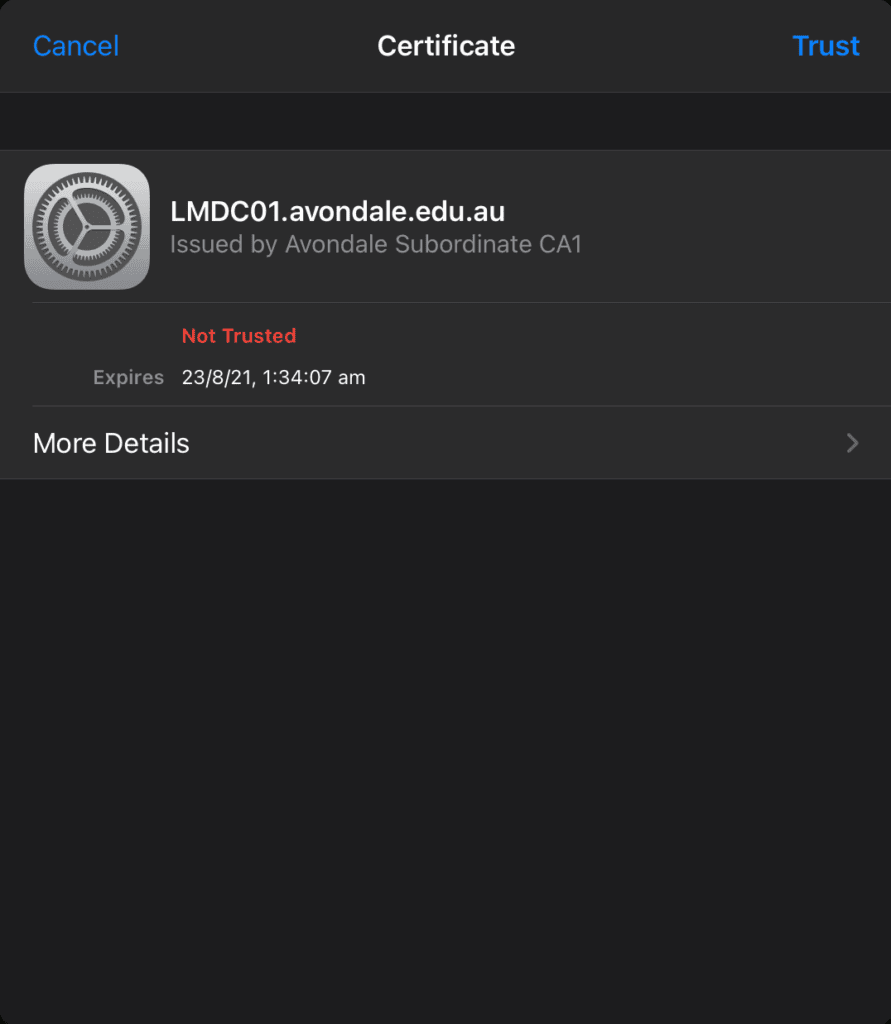
Enter your Avondale email address and password, then select Trust.
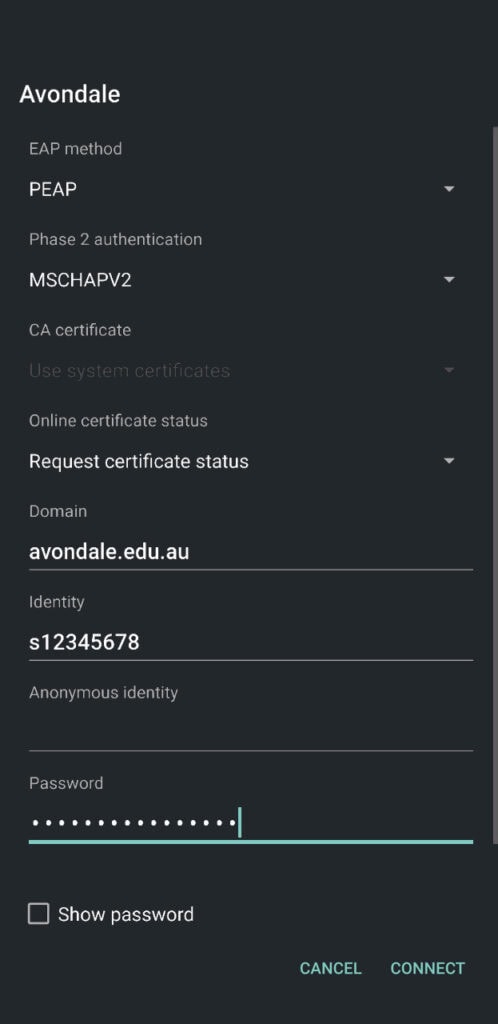
You'll need the following settings:
CA Certificate: Use system certificates
Online Certificate Status: Request certificate status
Domain: wireless.avondale.edu.au
Identity: (Your Student ID eg. s12345678)
Anonymous Identity: (Must be blank)
Password: (Your Avondale password)
EAP Method: PEAP
Phase 2 Authentication: MSCHAPV2
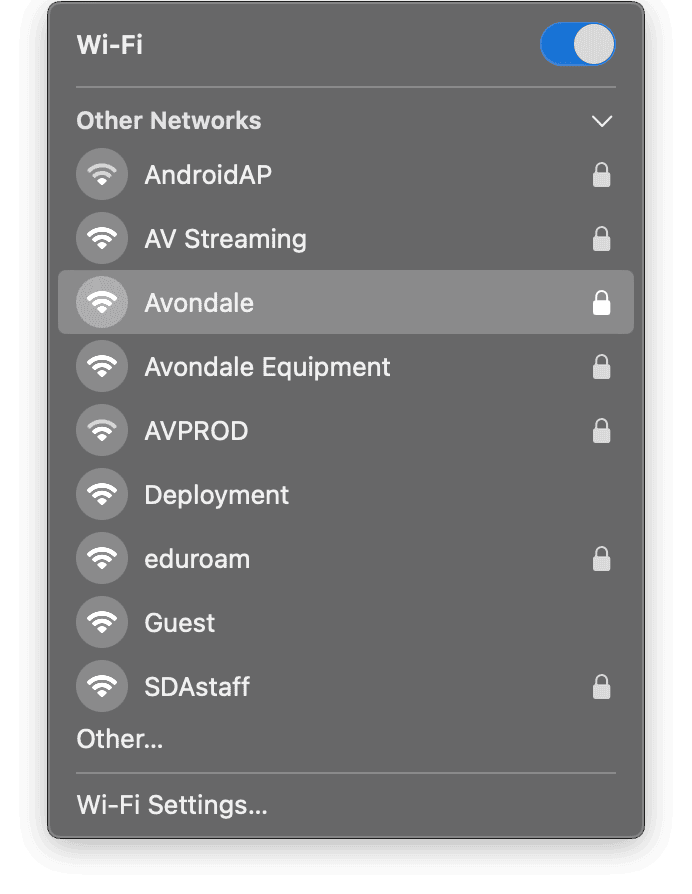
On macOS, you'll need to press the continue button to trust the certificate, and then enter your laptop password (when you open the lid).
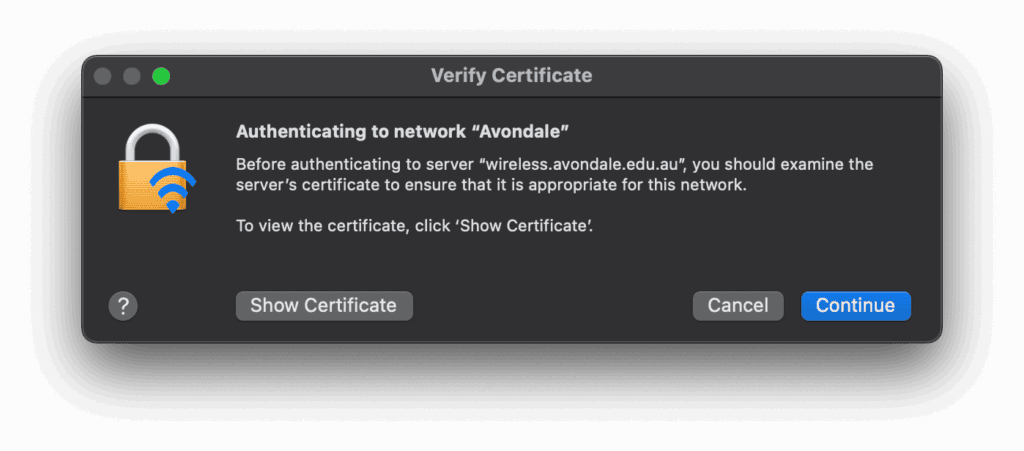
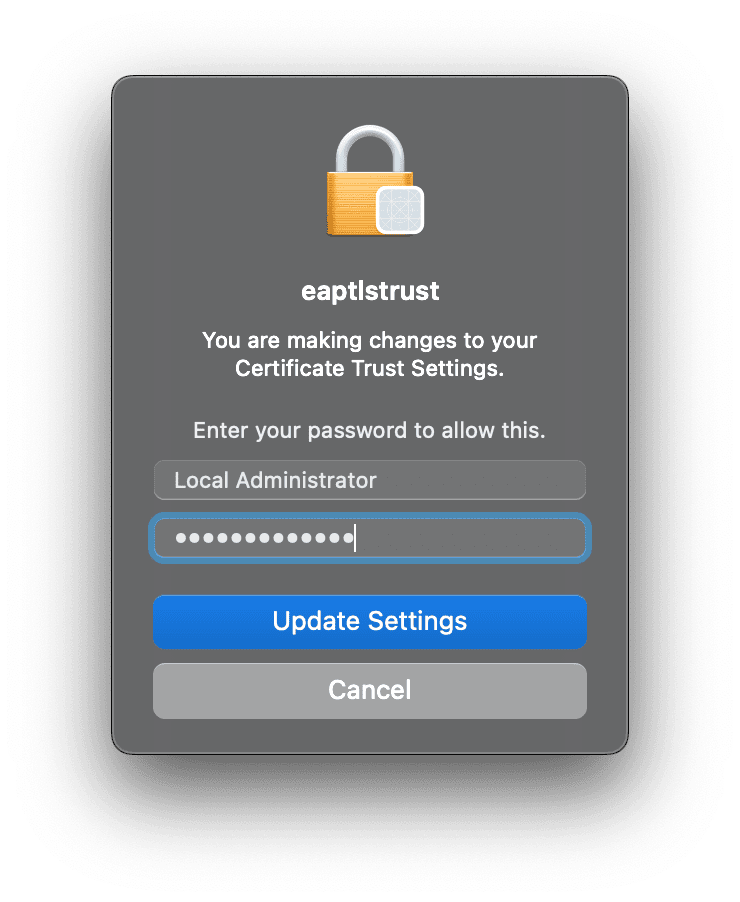
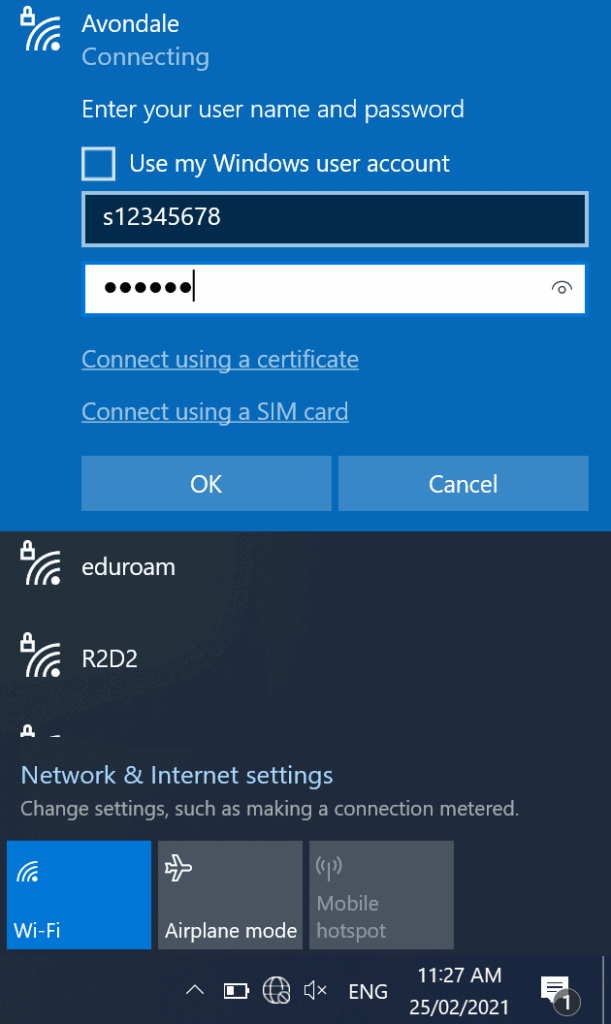
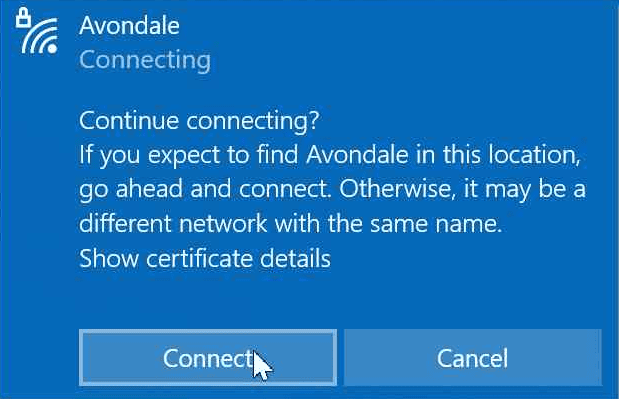
Wifi PDF instructions can be found here. If you're travelling to another university or are from another university, see our Eduroam page.
Tech Services recommends BitWarden for use a password manager because of its security guarantees. Students may be interested in the free version of their product.
Avondale Staff are required to use our official password manager to setup. To login, enter your Avondale email address, and select Use Single Sign On.
Our password manager is installed in Microsoft Edge by default. To finish setting it up:
https://vault.avondale.edu.au and select save.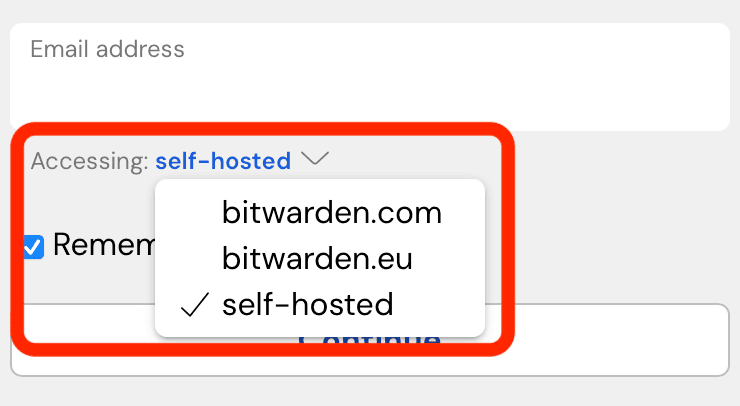
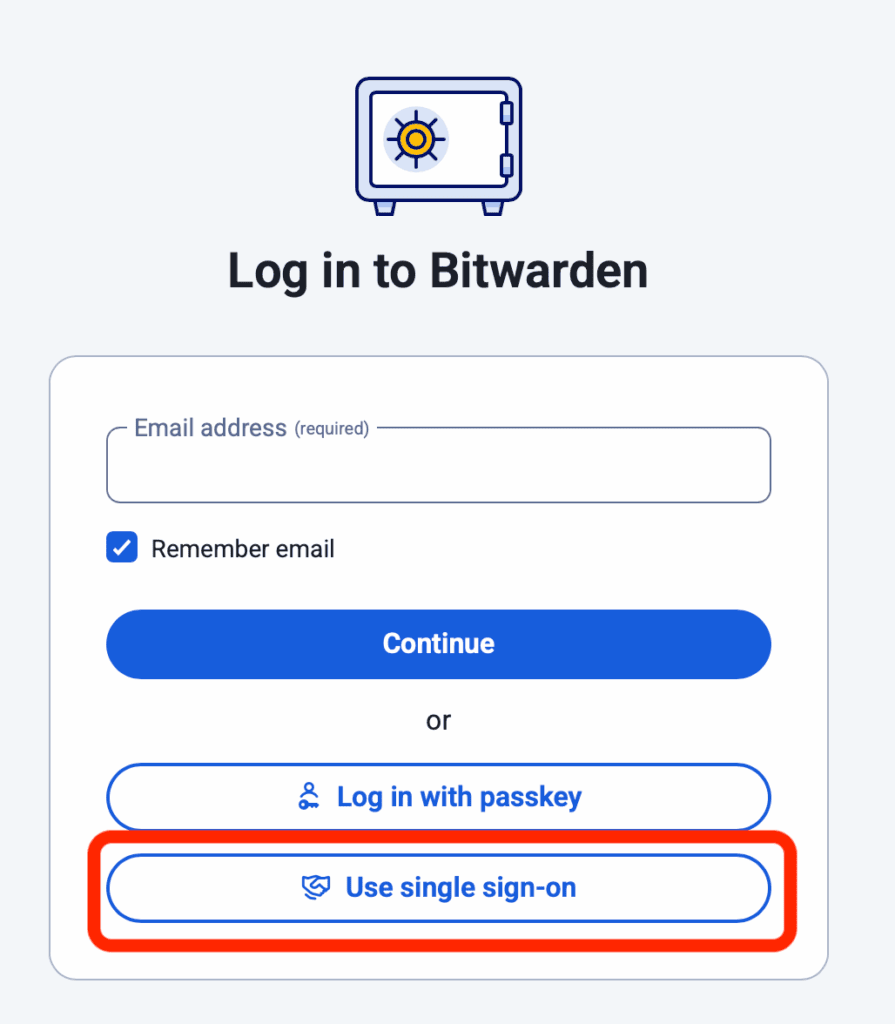
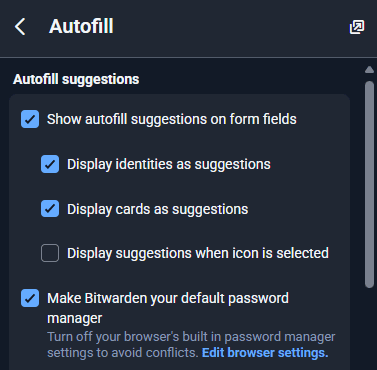
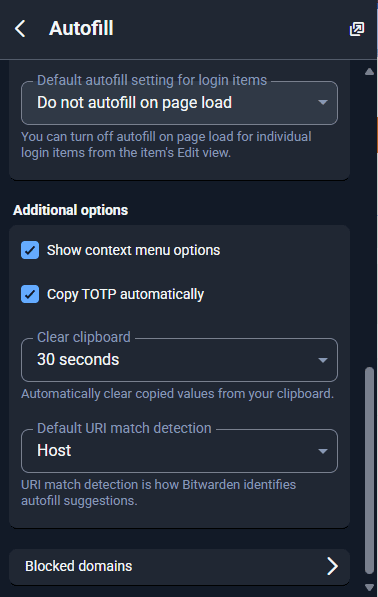
Avondale Staff are able to redeem Bitwarden for their family (up to 6 people).
Download the printer software here →
Instructions:
View the detailed Library printing guide →
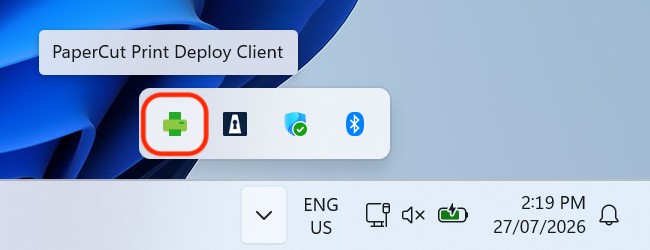
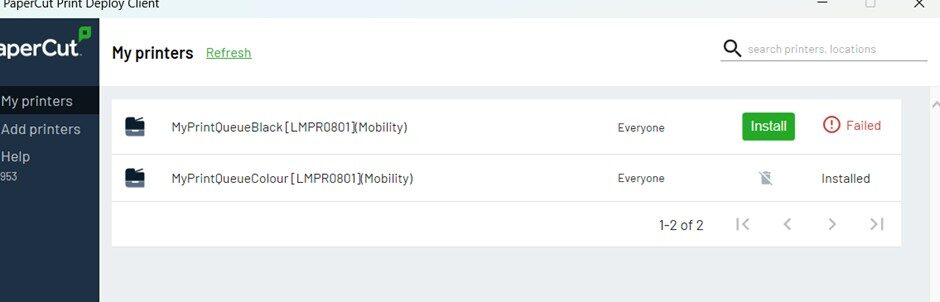
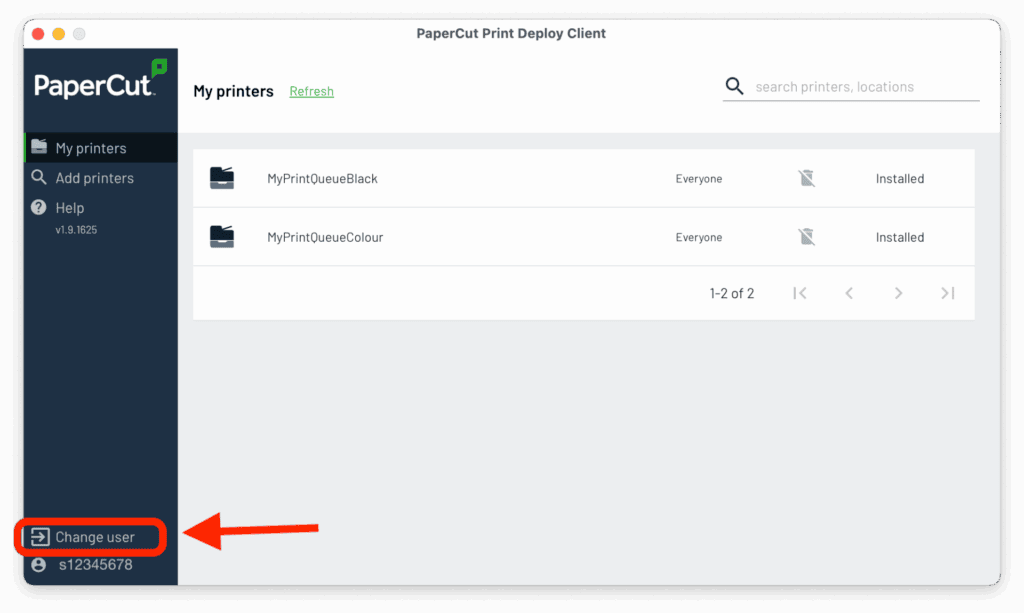
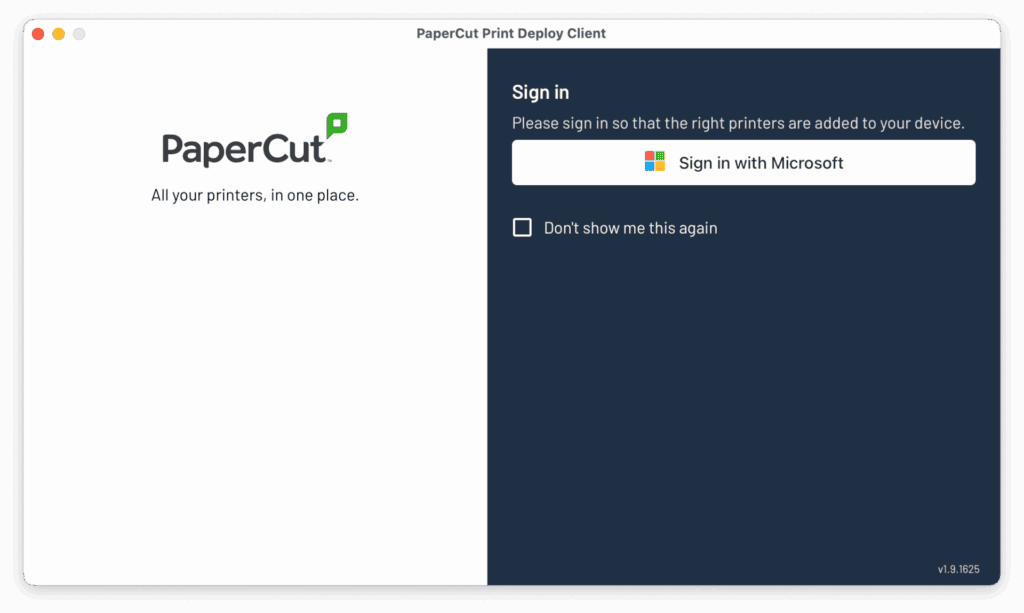
If printing using File > Print, check that PaperCut is signed in.
Please see the screenshots below.

Microsoft Office 365 is available for download from Microsoft directly. Simply download, install, and then sign in using your Avondale account. These are native apps for both Windows and macOS. Microsoft Office 365 is also available in a web browser.
If you're new to Microsoft apps then please check out Avondale Library's fabulous guide: Digital Literacy Student Guide: Microsoft Office 365.
View the instructions here to set up Remote Desktop.